Get Started
Installation
As of now Code ReViewer is in closed beta. If you received a .vsix file, you can install the extension by following these steps:
- Open Visual Studio Code.
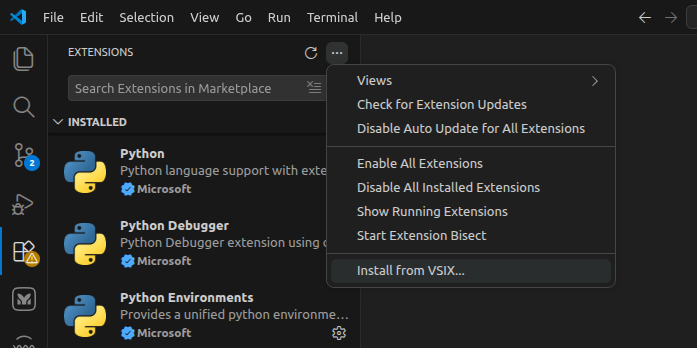
- Go to the Extensions view by clicking on the Extensions icon on the left sidebar
- Click on the three dots in the top right corner of the Extensions view and select "Install from VSIX..."
- Select the
.vsixfile you received.
Alternatively, the "Install from VSIX..." can be accessed from the command palette (F1 or Ctrl+Shift+P).
The VSIX file can also be installed from the command line:
code --install-extension crv.vsix
Basic Usage
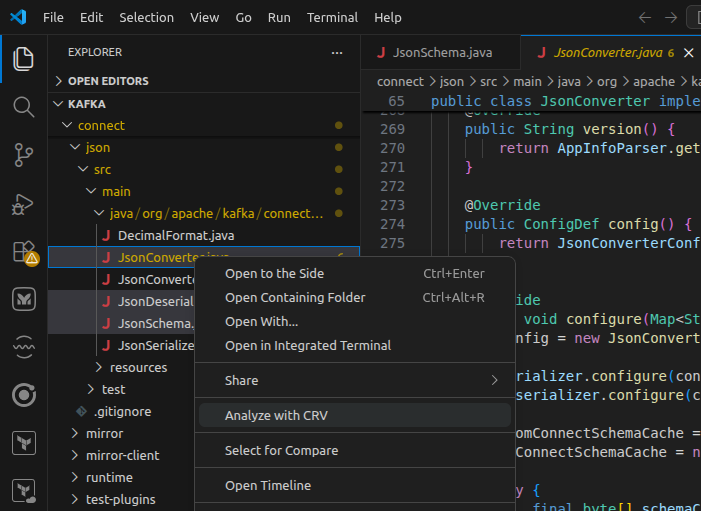
Select a few files or a directories in the Explorer view, right click and select "Analyze with CRV".
A new tab will open, in which vertices and edges will start to appear.
Note
Selected files should all have the same extension. Otherwise, CRV will not know what language to analyze and an error will be displayed.
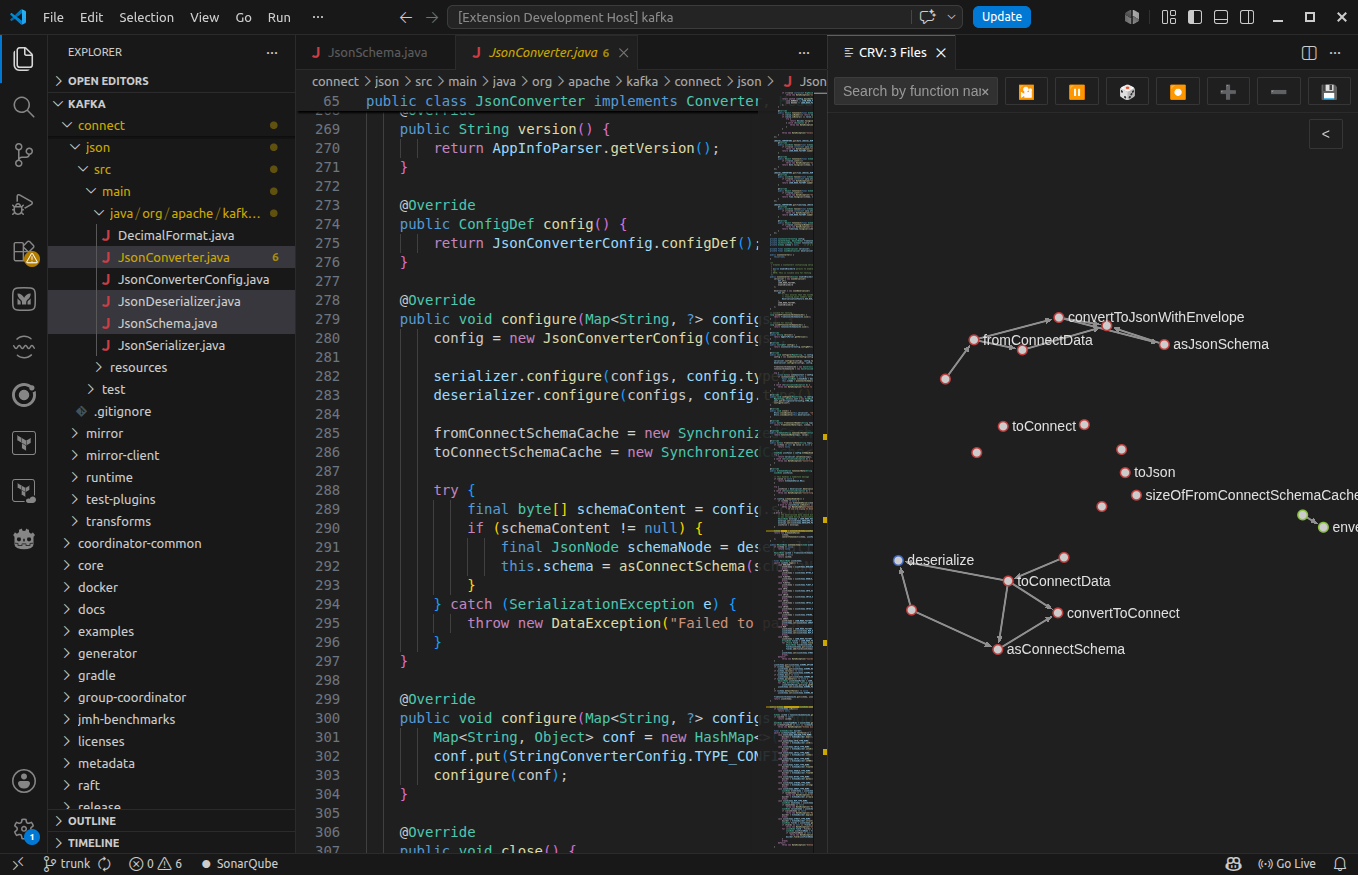
You can make the graph tab take the full editor space by dragging the tab to the left column, as with any other tab. Multiple graph tabs can be opened at the same time. The graph view can be panned and zoomed. Any vertex can be dragged with a mouse and other vertices will move accordingly. You can reveal the right sidebar by clicking on the < button in the top right corner of the graph view. The first section in the sidebar allows you to select metrics with which to judge the code quality. After selecting metrics, the vertices will be colored according to the metric values of the corresponding functions. The mapping from a metric value to a color can be set up in the third section in the sidebar -- "Histograms".
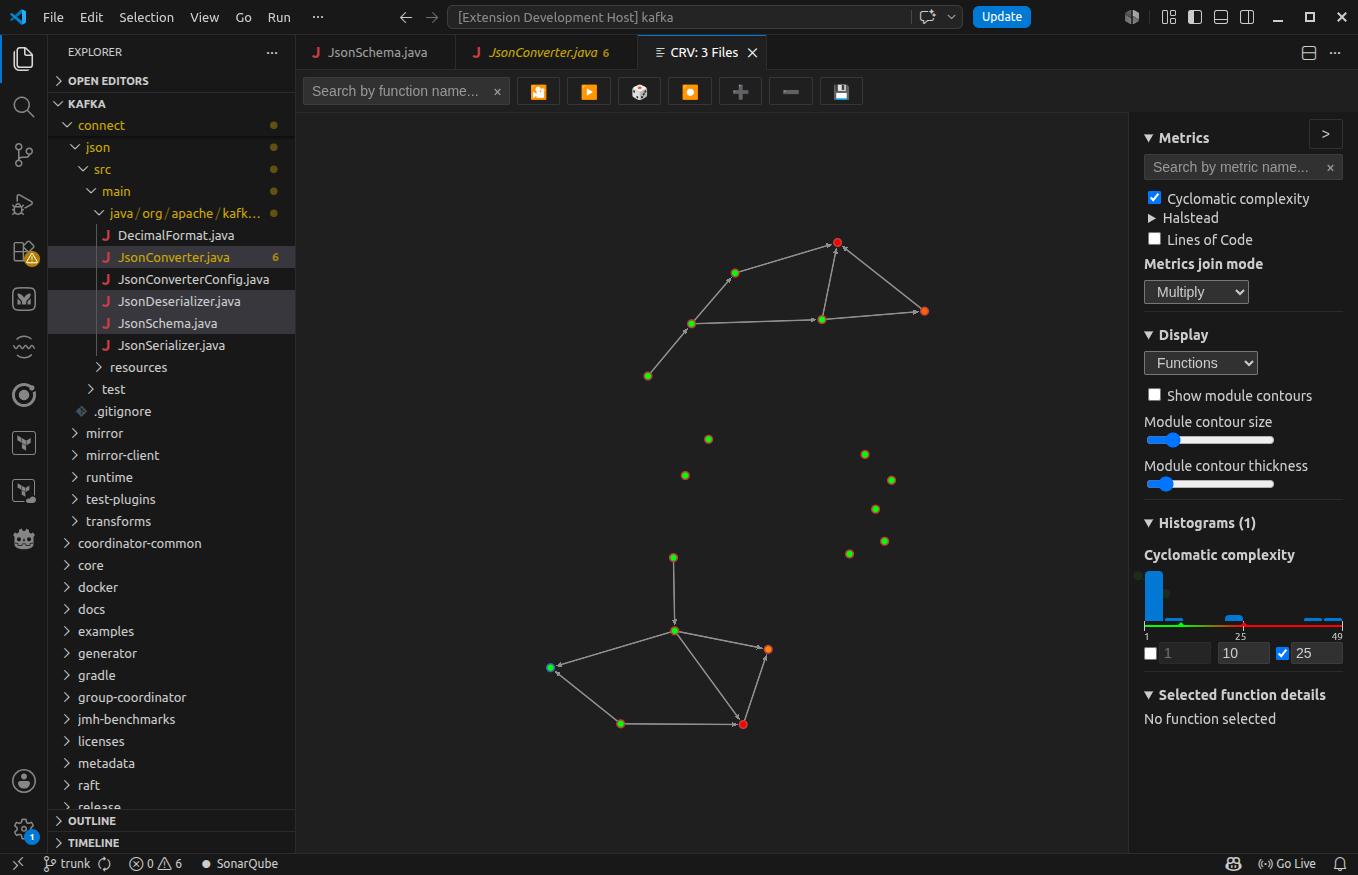
The interface is described in more detail in the Graph view interface page.