Graph view interface
After triggering an analysis, a new graph tab will be opened.
Overview
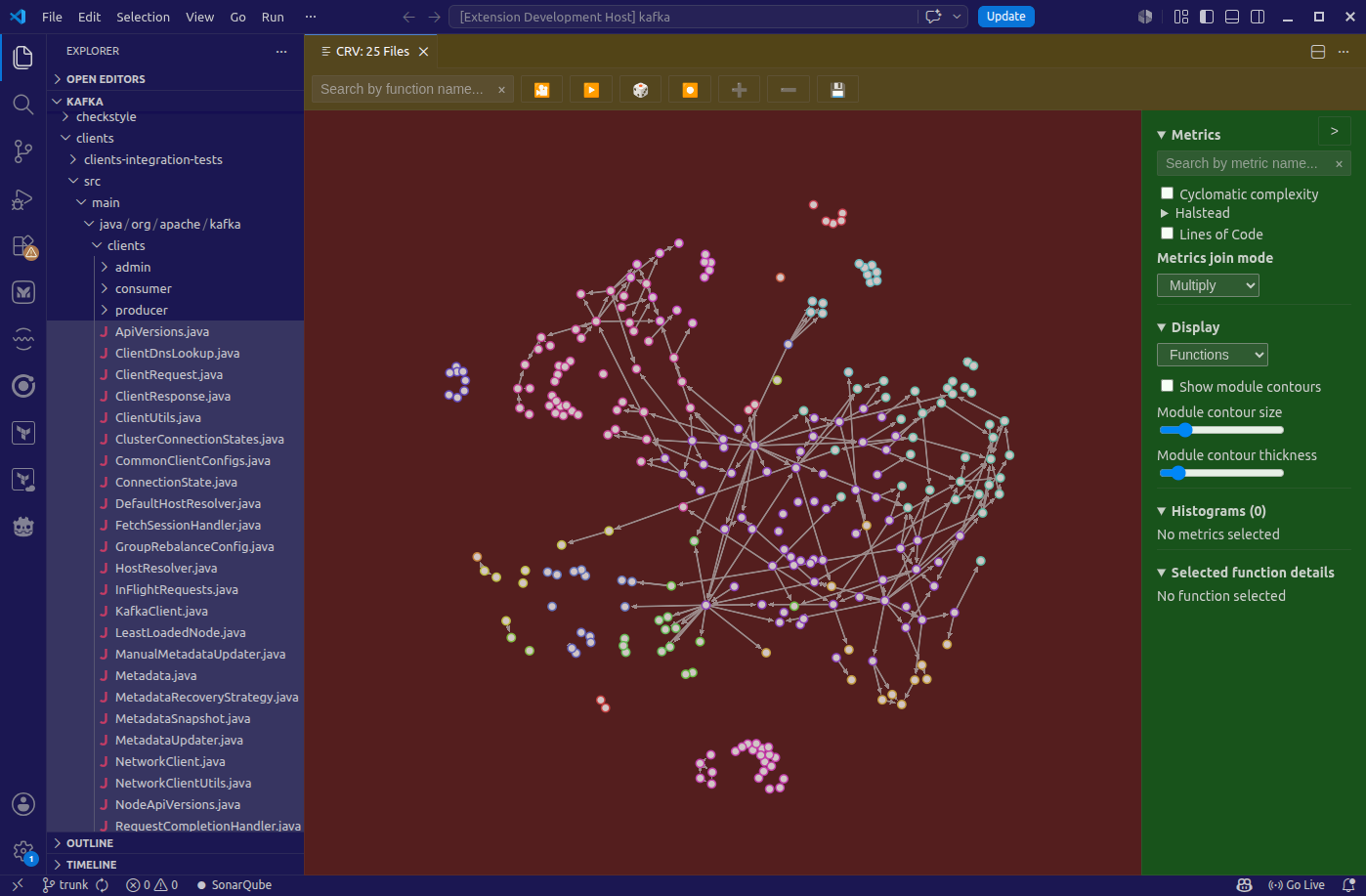
The above screenshot presents sections of the VS Code window with an open analysis tab.
- blue represents the standard VS Code interface
- red represents the graph view
- yellow represents the top bar
- green represents the side bar
Graph view
The graph view is the main section of the interface. It presents a graph of functions and methods as nodes, and calls between them as edges. The graph can be inetracted with:
| Action | Description |
|---|---|
| Left click on a node | Selects the node (highlight it and its neighbors and show its details in the side bar) |
| Drag a node with left mouse button | Moves the node |
| Drag with left mouse button on empty space | Moves the view |
| Scroll with mouse wheel | Zooms in/out |
Top bar
The top bar contains a few useful controls:
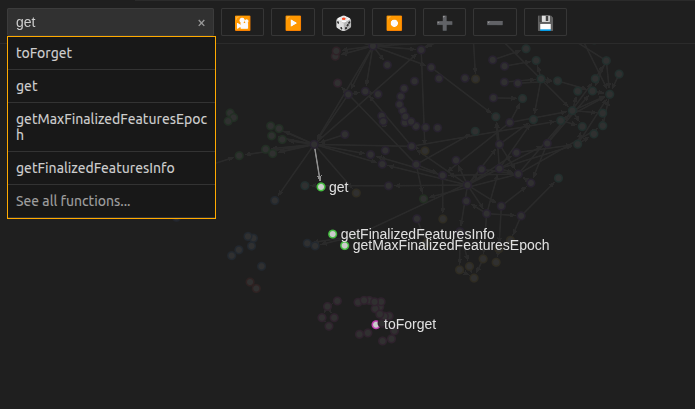
Search input for searching functions by name. After entering a query, all matching functions will be highlighted in the graph. Top matches are listed in an overlay below the search input together with an "See all functions..." option, which opens the Functions list.
Center camera button for centering the camera on the graph.
Start/Stop simulation button for starting and stopping the layout simulation. The layout simulation is used to position the nodes in the graph. When the simulation is stopped, the nodes will stay in their current positions. The simulation is started when the graph is opened for the first time and stopped automatically after a period of inactivity to save resources.
Randomize positions button for randomizing the positions of the nodes in the graph.
Arrange in circle button for arranging the nodes in a circular layout.
Zoom in button for zooming in on the graph.
Zoom out button for zooming out on the graph.
Save button for exporting the graph as an SVG image.
Side bar
The sidebar can be revealed and hidden with a button in the top right corner of the graph view.
Metrics tree
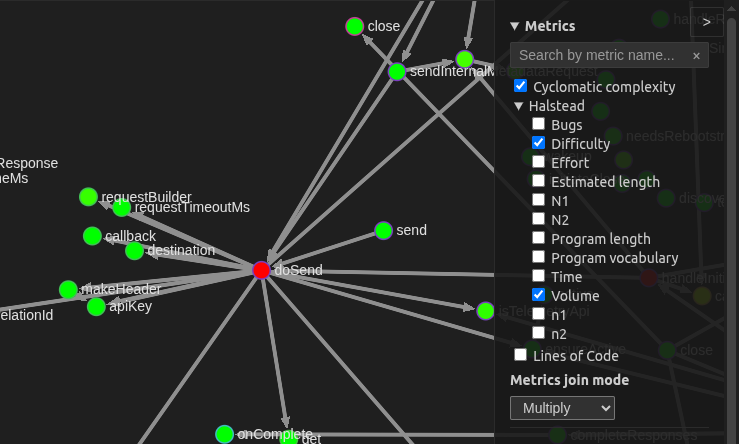
The metrics tree presents all available metrics. Sections can be expanded and collapsed. Above the metrics tree, there is a search input for searching metrics by name. Checking a metric will make this metric be taken into account when coloring the nodes in the graph. Below the metrics tree, there is a dropdown for selecting the value aggregating function. The value aggregating function is used to combine the values of all checked metrics into a single value, which is then used for coloring the nodes in the graph. Checking a metric will also make a corresponding histogram be displayed in the Histograms section.
Display
This section contains controls for changing the display of the graph.
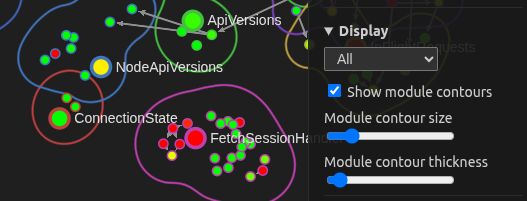
The first dropdown determines which nodes are displayed on the graph. Possible values are Functions, for displaying functions and methods, Modules, for displaying files and classes, and All, for displaying both.
The Show module contours checkbox allows for encircling nodes belonging to the same module with a contour. Next, there are two sliders for controlling the size of the contrours.
Histograms
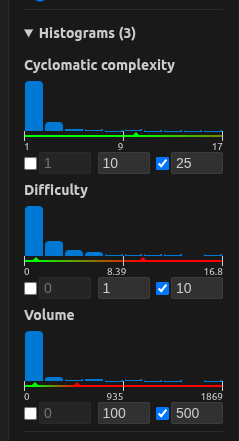
This section contains histograms of metric values for all selected metrics. After selecting a node in the graph, bars containing values of corresponding metrics for the selected function will be highlighted in the histograms. Hovering over a bar will show the range of values for this bar and the number of functions with values in this range.
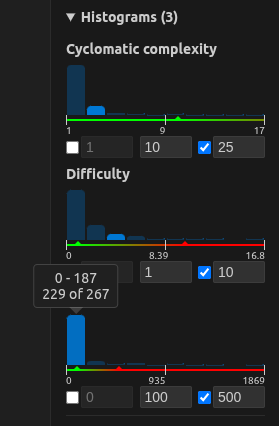
Below the bars of a histogram there is a horizontal scale showing the range of values for this histogram. The scale is colored according to the "Good", "Too low" and "Too high" values of the corresponding metric. The "Good", "Too low" and "Too high" values can be set in the interface. See Metrics reference.
Selected function details
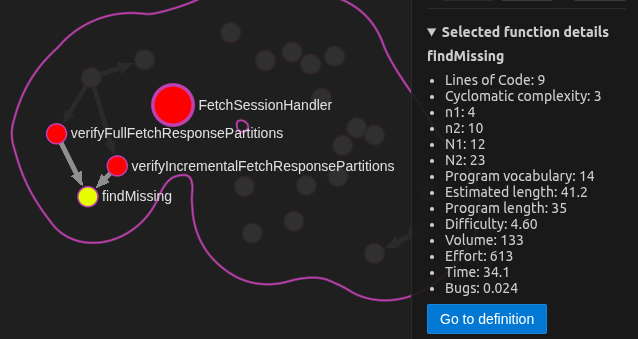
After selecting a node in the graph, this section will list all metrics of the corresponding function. Below the list of metrics, there is a button for opening the source code of the function in a new editor tab.
If there are many source code functions resolved to the same node in the graph, each of them will have a corresponding button for going to the source code of this function.
Functions list
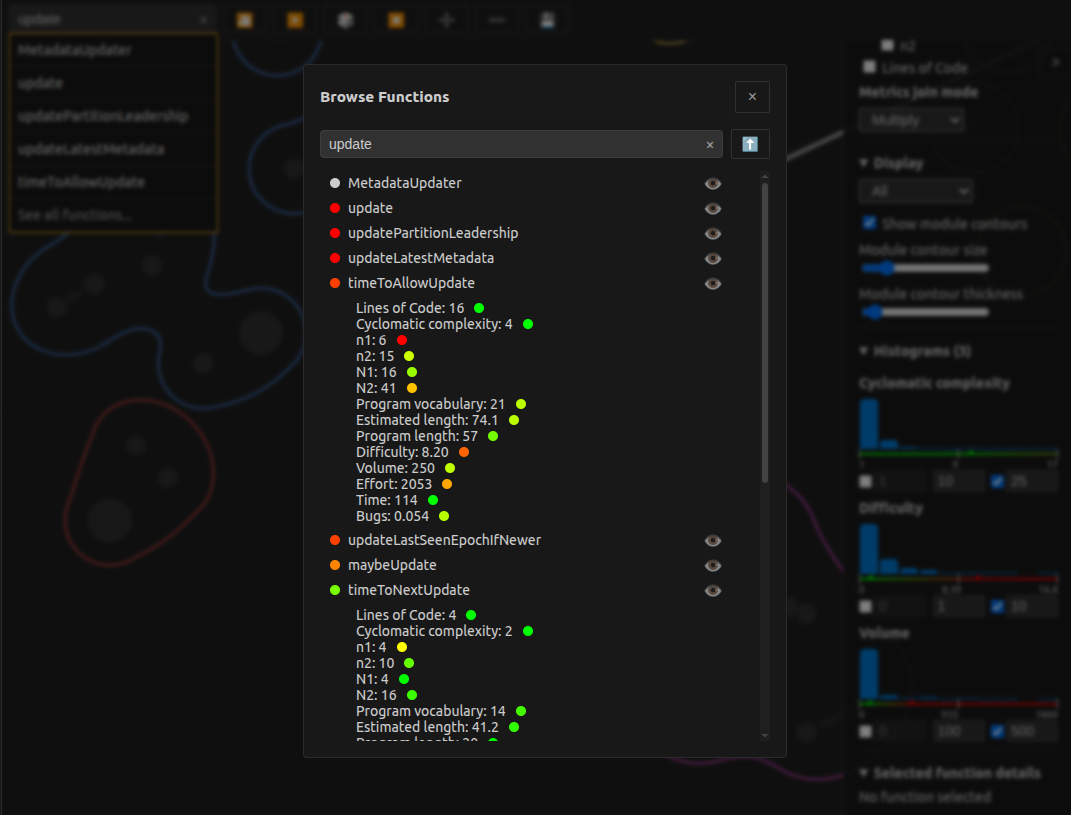
When entering a query in the search input in the Top bar and clicking the "See all functions..." option, a list of all functions will be opened. The query can be further edited in the modal.
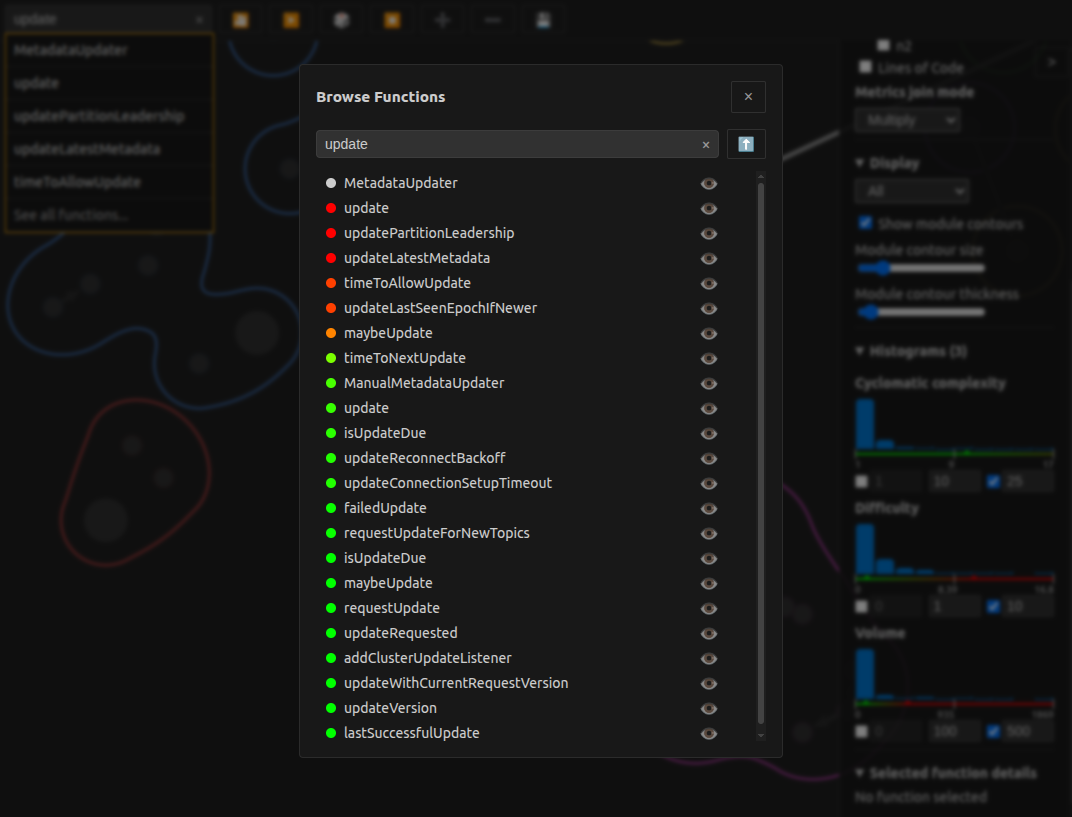
The list contains all matching functions sorted by aggregated metric score. The sort direction can be changed with thebutton to the right of the search input. Each function in the list has a button for going to the source code of this function. Clicking on a name of a function in the list will reveal a list of all metrics of this function.